OpenRCT2
  • Installing
    • System requirements
    • Getting RCT2
    • Installing OpenRCT2 on Windows
      • Extracting the RCT2 files (and optionally RCT1)
      • Installing OpenRCT2
      • Find your RCT2 installation
      • Other options
        • Linking to your RCT1 installation
        • Link OpenRCT2 with Steam
    • Installing OpenRCT2 on macOS
    • Installing OpenRCT2 on Linux/BSD
    • Installing on Android
    • Linking to your RCT1 installation
    • Link OpenRCT2 with Steam
  • Setup
  • Playing
  • Advanced features
  • Frequently asked questions
OpenRCT2
  • Installing
  • Installing OpenRCT2 on Windows
  • Link OpenRCT2 with Steam

Link OpenRCT2 with Steam

After you have installed OpenRCT2, you may want to link it with Steam’s RollerCoaster Tycoon 2: Triple Thrill Pack to record the playtime or something.

Select RollerCoaster Tycoon 2: Triple Thrill Pack in your Steam’s library and right-click it. Then click Properties
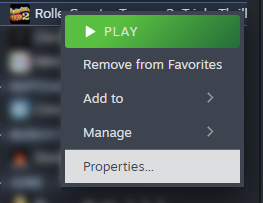
../_images/steam_properties.png

Check the directory where you have installed OpenRCT2, and input "(directory where OpenRCT2 is installed)/openrct2.exe" %command% in the Launch Options.

For example, "C:\OpenRCT2\openrct2.exe" %command% if you have installed OpenRCT2 in C:\OpenRCT2.
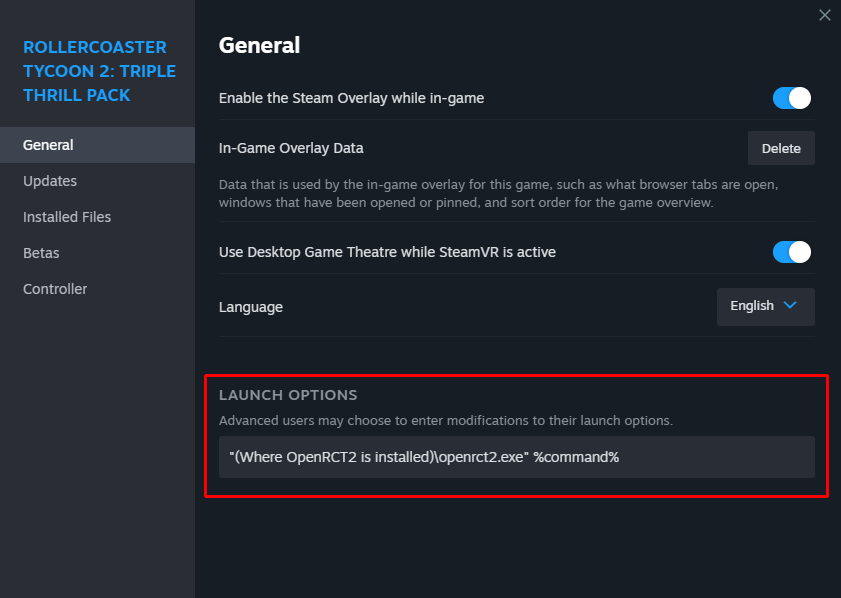
../_images/steam_launch_options.png

And it’s done! Now you can play OpenRCT2 with Steam.

Previous Next

© Copyright 2015-2026, OpenRCT2.

Built with Sphinx using a theme provided by Read the Docs.